 By Saurav Mehra
For most Indian users, WhatsApp is not just a chatting app. It is where family photos, office documents, school notices, payment screenshots, business orders, voice notes, wedding videos, address details, medical reports and important conversations are stored. So when someone buys a new phone or changes from iPhone to Android, the first fear is not about contacts or apps—it is about WhatsApp data. “Will my chats come back? What about old photos? What if my iCloud is full? Can I transfer WhatsApp without iCloud?”
This problem is very common because many iPhone users do not buy extra iCloud storage. The free iCloud space fills quickly with photos and backups, and WhatsApp backup becomes stuck. Some people also do not want to depend on cloud backup for privacy or storage reasons. Android users may face similar issues with Google storage. The good news is that WhatsApp now offers safer transfer options in many situations, including phone-to-phone transfer and official migration tools.
But one thing must be clear: WhatsApp backup and WhatsApp transfer are not always the same. A backup is stored for future restore, while transfer moves data directly from one phone to another. If you understand this difference, you can avoid panic, data loss and wrong steps.
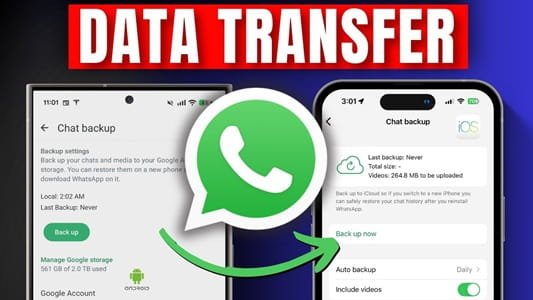
First Understand: Backup vs Transfer
A WhatsApp backup is a copy of your chats and media stored outside the app, usually in cloud storage. On Android, WhatsApp commonly uses Google Account backup. On iPhone, WhatsApp normally uses iCloud backup.
A transfer means moving chats from your old phone to your new phone directly, without depending on old cloud backup in many cases. This is useful when iCloud storage is full, backup is slow, or you are switching platforms.
So, if you say “without iCloud,” your realistic option is usually direct transfer, not a normal iPhone cloud backup. WhatsApp on iPhone does not create a standard chat backup in Google Drive. For iPhone users, iCloud is the usual cloud-backup method, but direct transfer can help when you do not want to use iCloud.
Before You Start: Prepare Both Phones
Do not start WhatsApp transfer in a hurry. First, charge both phones at least 60–70%. Keep both connected to a stable Wi-Fi network if required. Update WhatsApp on both devices. Update the phone software if possible.
Use the same mobile number on the new phone that you used on the old phone. WhatsApp transfer usually depends on number verification. Keep your SIM active because OTP may be needed.
Also check storage on the new phone. If your old WhatsApp has 30GB of videos and photos, your new phone must have enough free space. Many transfers fail simply because storage is low.
Clean WhatsApp Before Transfer
Before backing up or transferring, clean unnecessary media. Open WhatsApp, go to Settings, then Storage and Data, then Manage Storage. Delete large forwarded videos, repeated photos, old memes, useless documents and inactive group media.
This step saves time and reduces transfer failure. Many Indian WhatsApp accounts are heavy because of family groups, festival forwards, school groups and office files. You do not need to transfer every unnecessary video from the last five years.
But be careful. Do not delete important business invoices, payment proofs, legal documents, school notices or personal memories. Review before deleting.
Transfer WhatsApp From iPhone to iPhone Without iCloud
If you are moving from one iPhone to another and do not want to use iCloud, WhatsApp may offer a direct chat transfer option. In this method, chats move from the old iPhone to the new iPhone using WhatsApp’s built-in transfer process.
On the old iPhone, open WhatsApp and go to Settings, then Chats. Look for the option to transfer chats to iPhone. Start the process and follow the instructions. Usually, you need to scan a QR code shown on the new phone.
Keep both phones unlocked, close to each other and connected during the process. Do not switch apps repeatedly. Do not let the phone battery die. Do not reset the old phone until the transfer is complete and you have checked chats on the new phone.
This method is useful for users who do not have enough iCloud storage.
Transfer WhatsApp From Android to Android Without Cloud Backup
If you are shifting from one Android phone to another, WhatsApp’s built-in chat transfer can help move data directly. This avoids depending completely on Google Drive backup.
On the old Android phone, open WhatsApp, go to Settings, Chats, and look for Transfer chats. Start the transfer. On the new phone, install WhatsApp, verify the same number and follow the transfer instructions. You may need to scan a QR code.
Keep both phones near each other and connected to the same Wi-Fi or required connection. Do not close WhatsApp during transfer. This is often faster than cloud backup when the internet is slow or backup size is huge.
Still, it is smart to keep a fresh Google backup if possible before attempting anything major. A backup gives extra safety.
Transfer WhatsApp From iPhone to Android Without iCloud
Many Indian users now switch from iPhone to Samsung, Pixel, OnePlus, Xiaomi or other Android phones. In this case, iCloud backup will not directly restore WhatsApp on Android. You need to use the official transfer method from iPhone to Android.
Depending on the Android phone, the process may use a cable, device setup tool or WhatsApp’s transfer option. You generally need both phones, the same phone number and a supported Android device. On iPhone, WhatsApp provides an option under Chats to transfer chat history to Android.
This transfer should be done during the setup of the new Android phone in many cases. If the Android phone is already fully set up, you may need to reset it for the official transfer method to work.
Before doing this, read the on-screen instructions carefully. Do not delete WhatsApp from the iPhone until your chats appear properly on Android.
Transfer WhatsApp From Android to iPhone Without iCloud
If you are moving from Android to iPhone, you cannot restore Android Google Drive WhatsApp backup directly into iPhone WhatsApp. The official route is to use Apple’s Move to iOS app during iPhone setup.
The iPhone usually needs to be new or factory reset for this method. On the Android phone, install Move to iOS and follow the steps. During transfer, choose WhatsApp data when shown. After the process finishes, install WhatsApp on the iPhone and verify the same number.
This method does not depend on iCloud for the initial transfer from Android to iPhone. But after the data reaches your iPhone, future cloud backups on iPhone normally require iCloud.
Can You Backup iPhone WhatsApp Without iCloud?
This is the most important question. For normal WhatsApp backup on iPhone, iCloud is the official cloud-backup method. If you do not want to use iCloud, you can use direct transfer methods when changing phones, but that is not the same as maintaining a regular backup.
Some computer tools claim to backup or transfer WhatsApp without iCloud. Be very careful with such tools. Many are paid, some may not work properly, and some may create privacy risks. WhatsApp chats can contain banking messages, documents, personal photos and business details, so do not give access to unknown software casually.
For safety, prefer official WhatsApp transfer tools whenever possible.
Local Backup on Android
Android WhatsApp may also create local backup files on the phone storage. These can sometimes help restore chats on Android, especially when Google backup is unavailable. However, local backup handling is more technical and can vary by Android version, file access rules and phone brand.
If you are not comfortable with file manager folders, do not experiment blindly. Moving or deleting the wrong file can create confusion. For most users, WhatsApp’s built-in transfer option is easier and safer.
If you still want to use local backup, first copy the full WhatsApp folder carefully to a computer or external storage before making changes.
Use End-to-End Encrypted Backup for Extra Safety
If you do use cloud backup later, turn on end-to-end encrypted backup in WhatsApp settings. This adds an extra privacy layer to your backup. You will need to create a password or encryption key.
Keep that password safe. If you forget it, restoring the encrypted backup can become difficult. Do not store the password in an unsafe note, WhatsApp chat or gallery screenshot.
For Indian users who store business documents, private family media or financial messages, encrypted backup is a smart habit.
What Will Transfer and What May Not Transfer
Most personal chats, group chats, photos, videos and voice notes may transfer if the official method supports them and storage is available. But some items may not move in every method, such as payment history, call history, display name changes, or certain app settings.
WhatsApp Pay history and UPI-related information may not transfer like normal chats. After moving phones, you may need to set up UPI again inside WhatsApp if you use it.
Also, media that was deleted from the old phone may not transfer even if it appears as a blurred preview in chat. Make sure important media is actually downloaded before transfer.
Do Not Reset Old Phone Immediately
One of the biggest mistakes is resetting or selling the old phone too quickly. After transfer, open WhatsApp on the new phone and check important chats, photos, videos, documents and groups.
Search for a few old chats. Open some media files. Check business groups and pinned chats. Make sure everything important is visible.
Keep the old phone safely for at least a few days if possible. Once you are fully sure the transfer is successful, then reset the old phone after removing accounts and data properly.
Avoid Fake WhatsApp Transfer Apps
Many websites and ads promise “one-click WhatsApp transfer without iCloud.” Some may be genuine tools, but many are risky or unnecessary. They may ask for deep access to your phone data, charge money, fail halfway or compromise privacy.
Avoid downloading APK files from Telegram, random websites or YouTube descriptions. Use WhatsApp from official app stores only. Never share WhatsApp verification code with anyone.
Your WhatsApp data is personal. Treat transfer tools with the same seriousness as banking apps.
What If Transfer Gets Stuck?
If transfer is stuck, do not panic. First check Wi-Fi, battery, storage and WhatsApp updates. Keep both phones close. Disable battery saver if it is interrupting the process. Restart both phones only if the transfer clearly fails.
If moving Android to iPhone or iPhone to Android, make sure you are following the correct official method and that the new phone is at the required setup stage. Some transfers fail because the new phone has already been activated and needs reset.
If the problem continues, keep the old phone safe and contact WhatsApp help or the phone brand’s support.
Safe Transfer Checklist
Update WhatsApp. Charge both phones. Use the same number. Clean unnecessary media. Check storage. Keep both phones close. Use official transfer options. Do not delete WhatsApp from the old phone. Do not reset the old phone immediately. Avoid unknown tools. Turn on encrypted backup later if using cloud backup.
This careful process can save years of chats and memories.
FAQs
Q1. Can I transfer WhatsApp from iPhone to iPhone without iCloud?
Yes, in supported cases you can use WhatsApp’s built-in chat transfer option to move chats directly from old iPhone to new iPhone. Keep both phones close, updated and connected during the process.
Q2. Can I backup iPhone WhatsApp without iCloud?
For normal cloud backup on iPhone, WhatsApp uses iCloud. Without iCloud, you can use direct transfer methods while changing phones, but that is different from regular backup storage.
Q3. Can I move WhatsApp from Android to iPhone without Google Drive or iCloud?
Yes, the official method uses the Move to iOS process during iPhone setup. It transfers WhatsApp data from Android to iPhone directly, but the iPhone may need to be new or factory reset.
Q4. Is it safe to use third-party WhatsApp transfer software?
It is better to use official WhatsApp transfer methods first. Third-party tools may create privacy, payment or data-loss risks. If you use any tool, choose only a trusted provider and avoid unknown APKs or random websites.