 By Saurav Mehra
Nothing ruins a movie night faster than audio delay. You sit with family, open Prime Video, Netflix, YouTube or JioHotstar on your Fire TV Stick, and suddenly the dialogue does not match the lips. The actor speaks, but the sound comes a second late. In cricket, the bat hits the ball first and the sound follows later. In news, the anchor’s mouth moves differently from the voice. At first, you may ignore it, but after a few minutes it becomes impossible to enjoy.
This problem is very common in Indian homes because Fire TV Stick is used with many different setups—old LED TVs, new Smart TVs, soundbars, Bluetooth headphones, home theatre systems, projectors, HDMI splitters and sometimes even weak Wi-Fi. The issue may come from the Fire TV Stick, the app, the TV, the soundbar, Bluetooth audio delay, HDMI settings or internet buffering. So, fixing it needs a step-by-step approach instead of randomly changing every setting.
The good news is that most Fire TV Stick audio sync issues can be fixed at home. You usually do not need a new TV or a new Fire TV Stick. You just need to find where the delay is happening and adjust the right setting.
What Is Audio Sync Issue?
Audio sync issue means the sound and video are not matching properly. This is also called lip-sync problem or audio delay.
There are two common types. In the first, the sound comes after the video. You see lips moving first, and the dialogue comes late. In the second, the sound comes before the video. You hear the dialogue before the mouth movement.
Both are annoying, but they can happen for different reasons. Bluetooth headphones often create delay because wireless audio takes extra processing time. Soundbars and home theatre systems may create delay due to audio processing. Streaming apps may lag due to buffering or app bugs.
First Check If the Problem Is in One App or All Apps
Before changing Fire TV settings, test the problem properly. Open YouTube and play a video with clear speech. Then open Prime Video, Netflix or any other app and check again.
If audio delay happens only in one app, the issue may be with that app, its cache, streaming quality or a temporary bug. If the delay happens in every app, the problem is likely with Fire TV audio settings, TV processing, HDMI connection or sound output device.
Also test a different video inside the same app. Sometimes one movie, episode or live stream may have its own sync problem.
Restart the Fire TV Stick
This is the simplest fix, but many people skip it. Fire TV Stick runs like a small computer. If it stays on for many days, apps and background processes may create glitches.
Go to Settings, then My Fire TV, then Restart. You can also unplug the Fire TV Stick from power, wait for 30–60 seconds and plug it back in.
After restart, open the same app and check the audio again. Many temporary sync issues are solved with a proper restart.
Use AV Sync Tuning on Fire TV Stick
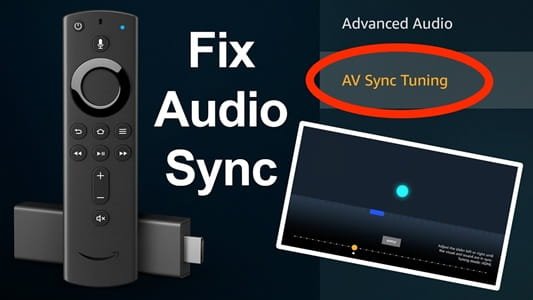
Fire TV Stick has a built-in AV Sync Tuning feature that is made for this exact problem.
Go to Settings from the Fire TV home screen. Select Display & Sounds. Then open Audio and choose AV Sync Tuning. You will see an on-screen test where a ball or object bounces with a sound. Adjust the slider until the bounce and sound match properly.
Take your time with this setting. Move the slider slowly and test again. If you move it too much, the problem may shift from audio delay to audio coming too early.
After tuning, play normal content and check whether dialogue looks better.
Check Your TV Audio Settings
Sometimes the Fire TV Stick is fine, but the TV creates delay through sound processing. Modern TVs have features like surround sound, virtual audio, dialogue enhancer, auto volume, motion processing and AI sound. These features can add processing time.
Open your TV’s sound settings. Try switching sound mode to Standard. Turn off unnecessary effects like virtual surround, auto volume, clear voice enhancement or heavy audio processing.
If your TV has an audio delay, lip sync or AV sync setting, adjust it carefully. Some TVs allow delay correction separately for HDMI inputs.
If you use Fire TV Stick directly in the TV, make sure you are adjusting the sound setting for that HDMI input.
Check Soundbar or Home Theatre Delay
If you use a soundbar, AV receiver or home theatre, the delay may be coming from that device. Soundbars often process Dolby audio, surround effects and dialogue enhancement, which can sometimes create delay.
Open your soundbar settings if available. Look for options like Audio Sync, Lip Sync, Delay, AV Sync or Sound Delay. Adjust it slowly.
If the soundbar has different modes like Movie, Music, News, Game or Standard, try Standard or Game mode. Game mode usually reduces processing delay.
Also check whether the soundbar is connected through HDMI ARC, optical cable or Bluetooth. HDMI ARC and optical are usually better than Bluetooth for reducing delay.
Bluetooth Headphones Can Cause Delay
Many users connect Bluetooth headphones to Fire TV Stick for late-night viewing. This is convenient, but Bluetooth audio can create delay because sound is compressed, transmitted and decoded wirelessly.
If audio sync is bad only with Bluetooth headphones, the headphones are likely the reason. Try disconnecting them and play audio through TV speakers. If sync becomes correct, the Fire TV Stick is not the main problem.
To reduce Bluetooth delay, use headphones with low-latency support. Also keep headphones close to the Fire TV Stick. Avoid using very old Bluetooth headphones for movies and gaming.
If your Fire TV audio setting allows changing audio format, try Stereo instead of advanced surround options while using Bluetooth headphones.
Change Fire TV Audio Format
Fire TV Stick can output different audio formats like Dolby Digital, Dolby Digital Plus or PCM/Stereo, depending on device and setup. Sometimes a TV or soundbar does not handle certain formats smoothly, causing delay or no sound.
Go to Settings, then Display & Sounds, then Audio. Look for Surround Sound or Digital Audio Format. Try switching from Best Available to PCM or Stereo, or try Dolby Digital instead of Dolby Digital Plus, depending on the options shown.
After changing the setting, test the same video again. If audio sync improves, your TV or soundbar may not be handling the earlier audio format properly.
For basic TV speakers, Stereo/PCM is often enough. For soundbars, choose the format that works best without delay.
Check HDMI Connection
A loose HDMI connection can cause audio and video problems. Remove the Fire TV Stick from the HDMI port and insert it again properly.
If your TV has multiple HDMI ports, try another HDMI port. Some older TVs handle audio differently across HDMI ports. If you use an HDMI extender, remove it temporarily and connect the Fire TV Stick directly to the TV.
Also make sure the Fire TV Stick is getting proper power from its adapter. Avoid powering it from a weak TV USB port if it causes performance issues. Use the original or good-quality power adapter.
Update Fire TV Stick Software
Old software can create app and audio problems. Keep your Fire TV Stick updated.
Go to Settings, then My Fire TV, then About, then Check for Updates. Install available updates and restart the device.
Also update apps from the app store. If one streaming app is outdated, it may create playback issues even if the Fire TV itself is updated.
After updates, test the same content again.
Clear App Cache
If audio sync issue happens only in one app, clear that app’s cache. Go to Settings, then Applications, then Manage Installed Applications. Select the app, then choose Clear Cache.
Start with apps where the problem appears most, such as Prime Video, Netflix, YouTube, JioHotstar, SonyLIV, Zee5 or JioCinema.
Do not immediately choose Clear Data unless needed, because that can log you out and reset app settings. Try Clear Cache first.
If the app still creates delay, uninstall and reinstall it.
Check Internet Speed and Buffering
Poor internet can cause video buffering, quality drops and sync problems. Fire TV Stick needs stable Wi-Fi, especially for HD and 4K content.
If audio sync issue appears during live cricket, OTT streaming or high-quality video, check your internet connection. Move the Wi-Fi router closer to the TV or use the 5GHz Wi-Fi band if the signal is strong.
Avoid downloading large files on other devices while streaming. If your Fire TV Stick is far from the router, use a Wi-Fi extender.
A stable connection is more important than only high speed. Frequent drops can disturb playback.
Turn Off Extra TV Motion Processing
Many TVs have motion smoothing features that make video look extra smooth. These features may be called Motion Flow, TruMotion, Auto Motion Plus, MEMC, Smooth Motion or Motion Enhancement.
While these features can make sports look smoother, they can sometimes add video processing delay. If audio and video do not match, turn off motion smoothing and test again.
This is especially useful when using Fire TV Stick with older or budget TVs that have slow processing.
Use Game Mode for Lower Delay
Some TVs have Game Mode. This reduces picture processing and lowers input delay. Although it is mainly for gaming, it can also help reduce sync problems in some setups.
Turn on Game Mode for the HDMI port where Fire TV Stick is connected and check whether audio improves.
The picture may look slightly different, but if sync becomes better, the issue was likely due to heavy TV processing.
Check If the Problem Happens With Live Content Only
Live streams can behave differently from normal movies. Cricket matches, news channels, live events and sports streams may sometimes have sync issues from the app or broadcast side.
If only one live stream has delay, try changing the stream quality, restarting the app or waiting a few minutes. Also test another app or another live channel.
If recorded movies and YouTube videos are fine, your Fire TV settings may not need major changes.
Restart Soundbar and TV Together
If you use Fire TV Stick with a soundbar or TV ARC setup, restart all devices together. Turn off the TV, unplug the Fire TV Stick, unplug the soundbar and wait one minute. Then turn on the TV first, soundbar second and Fire TV Stick last.
This helps HDMI handshake reset properly. Sometimes ARC, CEC and audio format settings get confused and create delay or no sound.
After restarting, test audio again.
Avoid Too Many Middle Devices
Some users connect Fire TV Stick through HDMI splitters, projectors, converters, capture cards or old home theatre systems. Every extra device in the chain can add delay.
For testing, connect the Fire TV Stick directly to the TV. If audio sync becomes correct, one of the middle devices is causing delay.
For the cleanest setup, connect Fire TV Stick directly to TV and send audio to soundbar through HDMI ARC or optical.
Factory Reset as the Last Option
If nothing works, factory reset can help remove deep software glitches. But this should be the last step because it removes apps, settings and logins.
Go to Settings, then My Fire TV, then Reset to Factory Defaults. After reset, set up the device again and install apps fresh.
Before doing this, keep your Wi-Fi password and app login details ready. Do not reset casually for a small one-app issue.
Practical Fix Order
Start with restarting the Fire TV Stick. Then test multiple apps. Use AV Sync Tuning. Check TV and soundbar audio delay settings. Change audio format to Stereo or PCM if needed. Clear app cache. Update Fire TV and apps. Improve Wi-Fi. Try another HDMI port. Disconnect Bluetooth headphones and test with TV speakers. Factory reset only if all steps fail.
This order saves time and avoids unnecessary changes.
FAQs
Q1. Why is my Fire TV Stick audio out of sync?
Fire TV Stick audio can go out of sync due to app glitches, Bluetooth headphone delay, soundbar processing, TV audio settings, HDMI issues, weak Wi-Fi or incorrect audio format settings.
Q2. Where is AV Sync Tuning on Fire TV Stick?
Go to Settings, then Display & Sounds, then Audio, and select AV Sync Tuning. Use the on-screen test to adjust the sound until it matches the video.
Q3. Why is audio delayed only on Bluetooth headphones?
Bluetooth headphones can create delay because wireless audio needs extra processing. Try low-latency headphones, keep them close to the Fire TV Stick, or switch Fire TV audio format to Stereo if available.
Q4. Should I reset my Fire TV Stick to fix audio delay?
Reset only as a last option. First try restart, AV Sync Tuning, audio format changes, app cache clearing, software updates and HDMI checks. Factory reset removes your apps and settings.