 By Saurav Mehra
Watching TV at home is not always as simple as turning up the volume. In many Indian families, one person wants to watch a late-night movie, another wants to sleep, children may be studying, grandparents may need louder dialogue, and neighbours may complain if the sound is too high. This is where Bluetooth headphones become extremely useful. You can enjoy cricket commentary, OTT web series, YouTube, news, gaming or devotional content without disturbing anyone.
But when people try to connect Bluetooth headphones to a smart TV, confusion starts. Some TVs connect easily, some do not show the headphones, some have sound delay, some disconnect again and again, and older TVs may not have Bluetooth at all. The good news is that most modern smart TVs now support Bluetooth audio, but the exact steps depend on the TV brand and model.
Whether you use Android TV, Google TV, Samsung TV, LG TV, Sony TV, OnePlus TV, Xiaomi TV, TCL, Hisense, Vu or a Fire TV Stick, the basic process is similar: put headphones in pairing mode, open TV Bluetooth settings, select the device and connect. Let’s understand the complete process in simple language.
First Check If Your Smart TV Supports Bluetooth Audio
Before trying anything, check whether your TV supports Bluetooth headphones. Many modern smart TVs support Bluetooth, but some budget models use Bluetooth only for remote control, not for audio output.
Open your TV settings and search for options like Bluetooth, Remote & Accessories, Sound Output, Wireless Speaker, Bluetooth Speaker List or Add Accessory. If you see these options, your TV likely supports Bluetooth audio.
You can also check the TV user manual, product page or box specifications. Look for terms like Bluetooth audio, Bluetooth headphone support or wireless audio output.
If your TV does not support Bluetooth audio, do not worry. You can still use a Bluetooth transmitter, which we will discuss later.
Put Your Bluetooth Headphones in Pairing Mode
Your headphones must be in pairing mode before the TV can find them. This is the step many users miss.
For most Bluetooth headphones, press and hold the power button or Bluetooth button for a few seconds until the light starts blinking. For true wireless earbuds like boAt, Noise, OnePlus Buds, Samsung Galaxy Buds, Sony, JBL, Realme Buds or AirPods, open the case and press the pairing button if available.
If the headphones are already connected to your phone, disconnect them first. Many headphones automatically connect to the last used device, so the TV may not find them until they are free.
Keep the headphones close to the TV during pairing.
How to Connect Bluetooth Headphones to Google TV
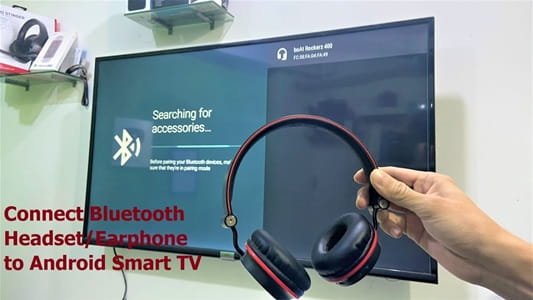
Google TV is common in many newer smart TVs and streaming devices. To connect headphones, go to the home screen and open Settings. Then select Remote & Accessories. Choose Pair remote or accessory. Your TV will start searching for Bluetooth devices.
Now keep your headphones in pairing mode. When the headphone name appears on the TV screen, select it and confirm pairing.
Once connected, TV sound should start playing through the headphones. If sound still comes from TV speakers, go to Sound settings and select Bluetooth audio output.
How to Connect Bluetooth Headphones to Android TV
Android TV steps are similar to Google TV, but menu names may vary by brand.
Open Settings from the home screen. Go to Remotes & Accessories or Bluetooth settings. Select Add Accessory or Pair New Device. Put your headphones in pairing mode. When the name appears, select it and pair.
On some Android TVs, you may need to go to Settings, then Device Preferences, then Bluetooth. On others, the option may be under Network & Accessories.
If the headphones do not appear, restart Bluetooth on the TV and put the headphones back into pairing mode.
How to Connect Bluetooth Headphones to Samsung Smart TV
On Samsung smart TVs, open Settings and go to Sound. Then select Sound Output. Look for Bluetooth Speaker List or Bluetooth Audio Device. Put your headphones in pairing mode and wait for the TV to detect them.
Select your headphones from the list and choose Pair and Connect. Once connected, sound will come through your headphones.
Some Samsung TVs may allow connecting two Bluetooth audio devices, especially newer models. Older models may support only one Bluetooth audio device at a time. The exact feature depends on your TV model and year.
How to Connect Bluetooth Headphones to LG Smart TV
On LG smart TVs, press the Settings button on the remote. Go to All Settings, then Sound. Select Sound Out. Choose Bluetooth Device, Bluetooth Speaker or LG Sound Sync/Bluetooth depending on your model.
Put the headphones in pairing mode. Your TV will search for nearby devices. Select your headphone name and connect.
On some LG webOS TVs, the option may be called Bluetooth Device List. After pairing, the TV should remember the device for future use.
How to Connect Bluetooth Headphones to Sony Smart TV
Sony TVs running Android TV or Google TV usually follow similar steps. Open Settings, then go to Remotes & Accessories or Bluetooth settings. Choose Add Device or Pair Accessory.
Put your headphones in pairing mode and select them when they appear. Confirm pairing.
If you are using a Sony Bravia model, menu names may differ slightly depending on the software version. But the Bluetooth option is usually found under Settings or Accessories.
How to Connect Bluetooth Headphones to Fire TV Stick
If your TV does not have Bluetooth but you use a Fire TV Stick, you can connect headphones to the Fire TV device itself.
Open Fire TV Settings. Go to Controllers & Bluetooth Devices. Select Other Bluetooth Devices. Choose Add Bluetooth Devices. Put your headphones in pairing mode and select them when shown.
This is a useful option for older TVs because the Fire TV Stick handles Bluetooth audio even if the TV does not support it.
What If Your TV Does Not Have Bluetooth?
If your smart TV or old LED TV does not support Bluetooth audio, you can use a Bluetooth transmitter. This small device connects to your TV through the 3.5mm headphone jack, optical audio port, RCA port or USB power, depending on the model.
Once connected, the transmitter sends TV audio to your Bluetooth headphones. This is useful for older TVs, set-top boxes and non-smart TVs.
When buying a transmitter, choose one with low-latency support if you watch movies or play games. Cheap transmitters may create audio delay.
Why Headphones Are Not Showing on TV
If your headphones are not appearing in the TV Bluetooth list, first check whether they are already connected to your phone or laptop. Disconnect them from other devices.
Then restart the headphones and put them in pairing mode again. Keep them close to the TV. Also restart the TV Bluetooth search.
If still not visible, restart the TV. Some TVs need a full restart, not just turning off the screen. Switch off the TV from the power socket for one minute and turn it on again.
Also check whether your TV supports Bluetooth audio. Some TVs may detect remotes and keyboards but not headphones.
How to Fix Bluetooth Audio Delay
Audio delay means the sound reaches your headphones slightly after the video. This is very annoying while watching movies, cricket, news or gaming.
Delay depends on the TV, headphones and Bluetooth codec. Basic Bluetooth headphones may have more delay. Low-latency headphones or transmitters can reduce this problem.
Check your TV sound settings for audio delay, AV sync, lip sync or digital audio delay options. Adjust the slider until dialogue matches lip movement.
For gaming, wired headphones or low-latency gaming headphones may be better because Bluetooth delay can affect gameplay.
Can You Use Bluetooth Headphones and TV Speakers Together?
Some TVs allow sound through both TV speakers and Bluetooth headphones. This is useful when one family member needs headphones while others listen normally.
Samsung, LG and some other brands offer accessibility or multi-output audio features on selected models. However, not every TV supports this. Many TVs automatically mute speakers when Bluetooth headphones connect.
Check sound settings for options like Multi-output Audio, Dual Audio, Accessibility Audio, Bluetooth + TV Speaker or Simultaneous Audio Output.
Can Two Headphones Connect to One TV?
Some newer TVs support two Bluetooth headphones at the same time, but many older TVs support only one. This depends on brand, model and Bluetooth version.
If your TV does not support two headphones, you can use a dual Bluetooth transmitter. These devices can send audio to two headphones at once.
This is helpful for couples watching late-night OTT content without disturbing others.
Best Bluetooth Headphones for TV Use
For TV watching, comfort matters more than style. Choose headphones with soft ear cushions, long battery life and stable Bluetooth connection. Over-ear headphones are comfortable for long movies and web series. Earbuds are convenient but may feel tiring after long use.
Look for low-latency support if you are sensitive to audio delay. Also check battery life. A headphone that lasts only 3–4 hours may stop during a long movie or cricket match.
For elderly users, choose headphones with clear dialogue, easy controls and comfortable fit.
Bluetooth Headphones for Senior Citizens
Many elderly people increase TV volume because dialogues are not clear. Bluetooth headphones can help them hear better without disturbing the whole house.
Choose lightweight headphones with large buttons and comfortable ear pads. Avoid complicated touch controls if the user is not comfortable with technology.
Set the volume carefully. Very high headphone volume can harm hearing over time. Keep it loud enough for clarity, not painfully loud.
Safety Tips While Using Bluetooth Headphones
Do not use very high volume for long hours. Take breaks during long viewing sessions. Keep headphones charged but avoid using damaged chargers or cables.
If using earbuds, clean them regularly. Earwax and sweat can affect sound quality and hygiene. Do not share in-ear earbuds without cleaning.
Also remember that when wearing headphones, you may not hear doorbells, phone calls or family members. Use them responsibly, especially at night.
How to Reconnect Next Time
Once paired, most TVs remember the headphones. Next time, simply turn on the headphones and select them from the TV’s Bluetooth or sound output menu.
If they connect automatically to your phone instead, disconnect them from the phone first. Some headphones support multipoint connection, but many budget models connect to only one device at a time.
If pairing becomes messy, remove or forget the headphones from TV settings and pair again from the beginning.
Common Mistakes to Avoid
Do not keep headphones connected to your mobile while pairing with TV. Do not stand too far from the TV during pairing. Do not assume every smart TV supports Bluetooth audio. Do not buy a cheap Bluetooth transmitter without checking audio delay. Do not use maximum volume for long hours.
Also avoid repeatedly resetting TV settings unless necessary. Most problems can be fixed by reconnecting, restarting or clearing old Bluetooth pairings.
Practical Setup for Indian Homes
For a modern smart TV, use built-in Bluetooth settings. For an older TV, use a Bluetooth transmitter. For Fire TV Stick users, pair headphones directly with Fire TV. For late-night viewing, keep headphones charged before starting a movie. For family use, check if your TV supports dual audio or TV speaker plus Bluetooth output.
A good setup makes TV watching more peaceful for everyone at home.
FAQs
Q1. Can all smart TVs connect to Bluetooth headphones?
No, not all smart TVs support Bluetooth audio. Some models have Bluetooth only for remote controls or accessories. Check your TV settings, manual or product specifications for Bluetooth audio support.
Q2. Why are my Bluetooth headphones not connecting to my TV?
Your headphones may already be connected to another device, not in pairing mode, too far from the TV, or unsupported by the TV. Disconnect them from your phone, restart pairing mode and try again.
Q3. How can I connect Bluetooth headphones to an old TV?
Use a Bluetooth transmitter. Connect it to the TV’s headphone jack, optical port or RCA output, then pair your headphones with the transmitter. Choose a low-latency transmitter for better audio sync.
Q4. Why is there sound delay in Bluetooth headphones while watching TV?
Bluetooth audio delay can happen due to TV processing, headphone codec or transmitter quality. Check TV audio sync settings, use low-latency headphones or a low-latency transmitter, especially for movies and gaming.