 By Saurav Mehra
 There are many moments when a mobile screen feels too small. You want to show family photos on a bigger display, watch a YouTube video with everyone, display a presentation, enjoy cricket highlights, play a phone video, attend an online class, or show travel pictures to relatives sitting in the living room. Instead of passing the phone from one person to another, casting the mobile screen to an Android Smart TV makes everything easier.
For Indian homes, this feature is extremely useful. Many families have one Android TV or Google TV in the hall, while everyone uses different phones—Samsung, Xiaomi, Redmi, Vivo, Oppo, Realme, OnePlus, Motorola, iQOO or Google Pixel. The good news is that most Android phones can connect wirelessly to many Android Smart TVs, but the process can confuse users because different brands use different names like Cast, Screen Cast, Smart View, Wireless Display, Miracast, Chromecast, Screen Mirroring or Screencast.
The simple idea is this: your phone sends its screen or selected app content to the TV through Wi-Fi. You do not need an HDMI cable. But for smooth casting, your phone, TV and Wi-Fi connection must be set up correctly. Let’s understand the easiest ways to cast your mobile screen to Android Smart TV wirelessly.
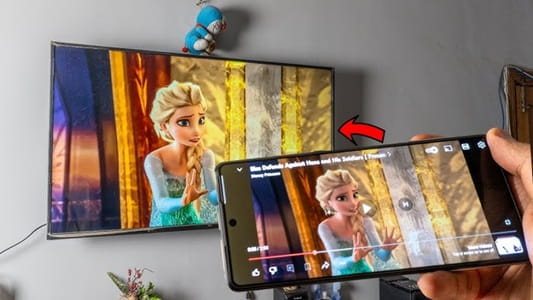
Casting vs Screen Mirroring: Know the Difference
Many people use the words casting and mirroring as if they are the same, but they are slightly different.
Casting usually means sending content from an app to the TV. For example, when you tap the cast icon in YouTube and play a video on TV, the TV streams the video directly. Your phone becomes a remote. You can use the phone for other tasks while the video continues on TV.
Screen mirroring means your full phone screen appears on the TV. Whatever you open on the phone—gallery, apps, browser, documents, games or camera—shows on the TV. This is useful for presentations, photos, apps without cast support and demonstrations.
For watching OTT and YouTube, casting is usually better. For showing your entire phone screen, screen mirroring is better.
Basic Requirements Before You Start
Before trying to cast, make sure your Android Smart TV and mobile phone are connected to the same Wi-Fi network. This is the most common requirement. If your phone is on mobile data and TV is on Wi-Fi, casting may not work.
Keep both devices close to the router for better connection. Update the TV software and the app you want to cast from. Also make sure your TV’s Google Cast or Chromecast built-in feature is enabled.
If you are using a dual-band router, try keeping both phone and TV on the same 2.4GHz or 5GHz network. Sometimes devices fail to find each other when one is connected to a different band or guest network.
Method 1: Cast From Apps Like YouTube
This is the easiest method and works well for many users.
Open YouTube on your Android phone. Make sure the TV is switched on and connected to Wi-Fi. Look for the cast icon, usually shown as a rectangle with Wi-Fi-like lines in one corner. Tap it and select your Android TV from the list.
Once connected, choose a video and play it. The video will start on the TV, and your phone will act like a remote. You can pause, change volume, add videos to queue or disconnect anytime.
This same method works in many supported apps like Prime Video, JioHotstar, Spotify and other streaming platforms, depending on app support and device compatibility.
Method 2: Use Google Home App for Full Screen Mirroring
If you want to show your full Android phone screen on TV, the Google Home app is one of the most common methods.
Install or open the Google Home app on your phone. Make sure your TV and phone are on the same Wi-Fi. In Google Home, your Android TV or Chromecast-enabled TV should appear as a device. Tap the TV name. Then choose Cast Screen or Cast My Screen.
You may see a warning that everything on your phone screen will be visible on TV. Confirm only when you are comfortable. After that, your phone screen will appear on the TV.
To stop mirroring, return to Google Home and tap Stop Casting, or use the cast notification from your phone’s notification panel.
Method 3: Use Phone’s Built-In Cast Option
Most Android phones have a built-in screen casting option in Quick Settings. Swipe down from the top of the screen and look for options like Cast, Screen Cast, Screencast, Wireless Display, Smart View or Multi-screen.
Tap the option and wait for your TV name to appear. Select it and accept any permission shown on the TV. Your phone screen should start appearing on the TV.
Samsung phones usually use Smart View. Xiaomi and Redmi may show Cast. Realme, Oppo, Vivo and OnePlus may show Screencast or Multi-screen. The name changes, but the function is similar.
Method 4: Cast Photos and Videos From Google Photos
If your goal is to show family photos or videos, Google Photos is very convenient.
Open Google Photos on your phone. Tap the cast icon if it appears. Select your Android TV. Then open any photo or video, and it will appear on the big screen.
This is perfect for showing wedding photos, birthday clips, travel memories, kids’ videos or festival pictures to the whole family. It looks cleaner than full screen mirroring because only the media content appears on TV.
Method 5: Cast From Chrome Browser
If you want to show a website, online article, form or web video, Chrome casting can help in some cases. On Android phones, app-level cast support depends on the content and device. For full web page viewing, screen mirroring through Google Home or the phone’s Cast option is often easier.
If you are using a laptop, Chrome browser has a built-in Cast option that can cast a tab, desktop or supported media to Android TV. But from a mobile phone, full screen mirroring is usually the more practical method for web pages.
How to Cast Without Wi-Fi
Wireless casting usually works best when both phone and TV are on the same Wi-Fi network. But some TVs and phones support Wi-Fi Direct or Miracast-style connection, which may not need a router. The feature name depends on brand.
You may find it under Wireless Display, Screen Mirroring or Miracast in TV settings. Turn it on, then open Cast or Wireless Display on your phone and connect.
However, this method is not equally supported on all Android TVs. Many Google TV and Chromecast-based systems prefer Wi-Fi network casting. If your home Wi-Fi is available, use it for better stability.
What If Your TV Does Not Show on the Phone?
If your TV name is not appearing, first check whether both devices are on the same Wi-Fi. Then restart both the phone and TV. Also restart your router if needed.
On the TV, check whether Google Cast or Chromecast built-in is enabled. Go to TV settings, apps, system apps and find Google Cast or Chromecast built-in. If disabled, enable it and restart the TV.
Also check whether your TV is on a guest Wi-Fi network. Guest networks may block devices from finding each other. Use the main home Wi-Fi instead.
Why Casting Disconnects Again and Again
Casting may disconnect due to weak Wi-Fi, distance from router, low phone battery, battery saver mode, TV software bugs or router issues.
Keep the TV and phone close to the router. Avoid downloading large files on the same Wi-Fi while casting. Turn off battery saver on the phone during screen mirroring. Update the TV and phone software.
If your TV is far from the router, use a Wi-Fi extender or connect the TV with an Ethernet cable if supported. A stable network gives smoother casting.
How to Fix Audio Delay While Casting
Audio delay can happen during screen mirroring, especially when watching videos or gaming. App-based casting usually has better sync than full screen mirroring.
If you face delay, use the cast button inside the video app instead of mirroring the whole screen. Restart the casting session. Keep Wi-Fi strong. Close background apps on the phone.
For gaming, wireless mirroring may not be ideal because even small delay can affect gameplay. A wired connection or direct TV app may work better.
Can You Cast OTT Apps Like Netflix and Prime Video?
Many OTT apps support casting, but availability depends on app rules, plan type, device compatibility and region. YouTube and Spotify usually cast easily. Prime Video and many other apps support casting on compatible devices.
Some apps may block screen mirroring for protected content. In such cases, you may hear audio but see a black screen, or the app may not allow casting. This is done for content protection.
For the best OTT experience, install the app directly on your Android TV and log in there. Use phone casting when supported, but direct TV apps often give better quality and fewer problems.
Does Casting Use Mobile Data?
If you cast from apps like YouTube using Wi-Fi, the TV usually streams through the internet connection. If your TV is connected to home broadband, mobile data may not be used much after casting starts.
But if your phone is using mobile hotspot for the TV, then data will be consumed from your mobile plan. Streaming videos on a TV can use a lot of data, especially in HD or 4K.
Always check whether the TV is connected to home Wi-Fi or your phone hotspot before long streaming.
Privacy Tips While Screen Mirroring
When you mirror your full phone screen, everything can be visible on TV—messages, notifications, bank alerts, photos, search history and personal apps. Be careful, especially in front of guests or family gatherings.
Before mirroring, turn on Do Not Disturb or hide sensitive notifications. Close private apps. Avoid opening banking apps, UPI apps, personal chats or private photos while the screen is visible on TV.
For photos and videos, use Google Photos casting instead of full screen mirroring when possible.
Best Uses of Mobile-to-TV Casting
Casting is useful for family photo viewing, YouTube videos, online classes, fitness videos, presentations, music, devotional content, recipes, video calls on a larger screen, and quick sharing of documents.
For long movies or high-quality OTT watching, using the TV’s own app is usually better. For quick sharing and casual viewing, casting is extremely convenient.
Common Mistakes to Avoid
Do not connect phone and TV to different Wi-Fi networks. Do not keep battery saver on during long mirroring. Do not mirror private notifications. Do not expect every OTT app to allow screen mirroring. Do not use weak Wi-Fi and expect smooth 4K casting.
Also avoid downloading random third-party screen-mirroring apps unless necessary. Many ask for unnecessary permissions or show too many ads. Built-in phone features and Google Home are usually safer.
Simple Step-by-Step Setup
Connect phone and TV to the same Wi-Fi. Turn on the TV. Open YouTube or another supported app and tap the cast icon. Select your TV. For full screen mirroring, use Google Home or your phone’s Cast option. Accept the TV prompt if shown. Keep both devices nearby and avoid switching networks.
Once connected, enjoy your mobile content on the big screen without cables.
FAQs
Q1. Why is my Android TV not showing in the cast list?
Your phone and TV may be on different Wi-Fi networks, Google Cast may be disabled, or the router may be blocking device discovery. Restart the phone, TV and router, then check Cast settings on the TV.
Q2. Can I cast my full mobile screen to Android TV?
Yes, you can mirror your full Android phone screen using Google Home or the built-in Cast/Screen Cast option, if your phone and TV support it. Remember that notifications and private content may also appear on TV.
Q3. Can I cast without internet?
Some phones and TVs support wireless display or Miracast-style connection without a router, but support varies. For most Android TVs, casting works best when both phone and TV are connected to the same Wi-Fi network.
Q4. Why do I see a black screen while casting OTT apps?
Some OTT apps block screen mirroring for copyright protection. Use the app’s built-in cast button if available, or install the OTT app directly on your Android TV for better playback.