 By Saurav Mehra
 You open your Android phone’s storage settings and suddenly feel confused. Photos are understandable. Videos are understandable. Apps are understandable. But then you see “System,” “Other,” “Miscellaneous,” or “System Data” taking 20GB, 40GB or sometimes even more. The phone starts warning, “Storage almost full,” WhatsApp downloads stop, camera refuses to record videos, apps lag, and software updates fail. For many Indian users, this becomes irritating because the phone is used for everything—UPI, WhatsApp, Instagram, YouTube, office files, school PDFs, travel tickets, Aadhaar documents, photos, reels and banking apps.
The most frustrating part is that “Other” storage is not one simple folder you can open and delete. It is a mix of temporary files, app cache, leftover update files, WhatsApp media, downloaded documents, thumbnails, offline videos, hidden app data and system files. Some of it is useful. Some of it is junk. Some of it cannot be deleted safely because Android needs it to run properly.
The good news is that you can reduce this storage pressure without formatting your phone. You just need to clean carefully, step by step. The aim is not to blindly delete everything, but to remove unnecessary files safely while protecting your photos, documents, chats and app data.
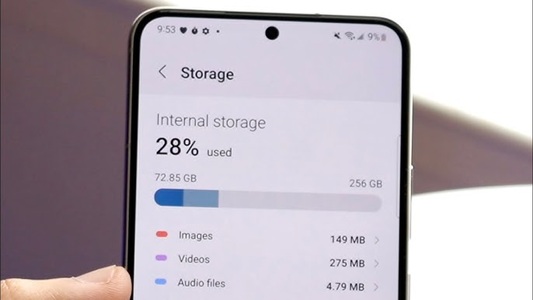
What Is “System” or “Other” Storage on Android?
On Android phones, storage categories are not always shown clearly. Different brands use different names. Samsung may show “Other” or “System.” Xiaomi, Redmi, Realme, Vivo, Oppo, OnePlus, Motorola and Pixel may show storage in slightly different ways.
“System” usually includes Android operating system files, pre-installed apps, updates and essential phone data. You cannot remove most of this safely.
“Other” storage is broader. It may include app cache, temporary files, downloaded files, WhatsApp data, Telegram files, hidden folders, thumbnails, logs, offline content and leftover files from deleted apps.
So, when “Other” is large, it does not always mean something is wrong. But if it keeps growing, your phone needs cleaning.
First Check What Is Actually Using Storage
Before deleting anything, open your phone’s storage settings. Go to Settings, then Storage or Battery and Device Care, depending on your phone brand. Check how much space is used by apps, images, videos, audio, documents, system and other files.
This gives you direction. If videos are huge, cleaning cache will not help much. If apps are taking too much space, deleting photos will not solve the main problem. If WhatsApp is very large, your gallery and app data need attention.
Also check individual apps. Go to Settings, Apps, select an app and open Storage. You will see app size, user data and cache. This helps you understand which apps are silently growing.
Clear App Cache Safely
Cache is temporary data stored by apps to make them load faster. For example, Instagram, YouTube, Chrome, Maps, shopping apps and food delivery apps store cache. Over time, this can become large.
Clearing cache is usually safe because it removes temporary files, not your login or main app data. The app may load slightly slower the next time, but it will build fresh cache again.
Go to Settings, Apps, select the app, tap Storage, then Clear Cache. Start with heavy apps like Instagram, Facebook, YouTube, Chrome, Google Maps, shopping apps, food delivery apps and browsers.
Do not tap “Clear Storage” or “Clear Data” unless you understand what it does. That option can remove app settings, downloads, accounts, offline files and sometimes important saved data.
Clean WhatsApp Storage Properly
For Indian users, WhatsApp is often the biggest hidden storage eater. Good morning images, family videos, office PDFs, wedding clips, school homework, forwarded reels and festival greetings silently fill the phone.
Open WhatsApp, go to Settings, Storage and Data, then Manage Storage. Here you can see large files, forwarded files and chat-wise storage usage. Delete unnecessary videos, duplicate images and old forwarded media.
Check family groups and old inactive groups. Many users have years of media saved without realising it. You can also turn off auto-download for photos and videos, especially on mobile data.
Before deleting anything important, back it up or save needed files separately. Do not delete full chats blindly if they contain business records, payment details or documents.
Delete Telegram and Instagram Downloads
Telegram can take huge storage because it stores videos, movies, PDFs, files and channel media. Many students and movie watchers face this problem. Open Telegram settings, go to Data and Storage, then Storage Usage. Clear cache from there. This usually removes downloaded media from the device but keeps cloud access if the files are still available in chats.
Instagram and Facebook also create cache from reels, stories, posts and videos. Clearing their cache from app settings can free space.
If these apps keep growing again, reduce unnecessary browsing time or clean their cache every few weeks.
Use Files by Google or Phone Cleaner Carefully
Files by Google is a useful app for finding junk files, duplicate files, large videos, old screenshots, downloaded files and unused apps. Many Android phones also have built-in cleaner tools.
Use these tools, but do not blindly accept every suggestion. Review files before deleting. Sometimes cleaner apps show downloads, APK files, documents or old photos that may still be important.
Avoid random third-party “phone booster” or “RAM cleaner” apps from unknown developers. Many of them show fake warnings, push ads, collect data or create more problems than they solve.
Remove Old Downloads and PDFs
The Downloads folder is like a hidden storeroom. It often contains Aadhaar PDFs, PAN copies, bank statements, school forms, train tickets, job resumes, invoices, APK files, restaurant menus, app backups and random files.
Open your file manager and check Downloads. Delete files you no longer need. Move important documents to cloud storage or a safe folder.
Be especially careful with APK files. If you downloaded app installers from websites or WhatsApp, delete old APKs after use. Keeping them wastes storage and can also be risky if they are from untrusted sources.
Clean Google Photos and Gallery Smartly
Photos and videos are usually the biggest storage users. But many people do not realise that even after backing up photos to the cloud, local copies may still remain on the phone.
If you use Google Photos, first make sure backup is complete. Then use the “Free up space” option to remove local copies that are already backed up. This can save a lot of storage without losing photos from your Google account.
Also delete blurry photos, duplicate selfies, screenshots, screen recordings and WhatsApp forwards. Long 4K videos and slow-motion clips can take huge space.
Check the Recently Deleted or Trash folder too. Deleted photos may stay there for 30 days or more and still use storage until permanently removed.
Remove Offline Videos and Music
YouTube, Netflix, Prime Video, Spotify, JioCinema and other apps allow offline downloads. These are useful during travel, but they can fill storage quickly.
Open each app and check downloads. Delete watched movies, web series episodes, music playlists and offline videos. Many people forget that one downloaded season can take several GB.
If your phone has limited storage, avoid downloading videos in high quality. Use standard quality for mobile viewing unless you really need HD.
Uninstall Apps You Do Not Use
Unused apps take storage, create cache, send notifications and sometimes run in the background. Open your app list and remove apps you have not used in months.
Common unused apps include old games, festival apps, editing apps, shopping apps, loan apps, exam apps, duplicate browsers, old launchers and one-time travel apps.
If you are unsure, check app usage in settings. Some phones show when an app was last opened. Remove what you do not need.
If an app came pre-installed and cannot be uninstalled, you may be able to disable it. This will not always free huge space, but it can reduce background activity.
Clear Browser Cache and Downloads
Browsers like Chrome store cache, cookies, website files and downloads. Over months, this can take space.
Open Chrome, go to History or Privacy settings, and clear browsing data. You can clear cached images and files. Be careful with cookies and saved passwords if you do not remember your login details.
Also check browser downloads. Many PDFs, images and forms downloaded from websites remain saved even after you finish using them.
Check Hidden Folders and File Manager Categories
Some file managers show categories like Large Files, APKs, Archives, Documents, Audio and Videos. Use these categories to find large items quickly.
Look for folders from old apps that you deleted. Sometimes apps leave folders behind in internal storage. If you clearly recognise an old app folder and no longer need it, you can delete it.
Be careful with Android, Data, OBB and system folders. Do not delete unknown files from these folders unless you are sure. Removing the wrong files can break app data or game files.
Update Your Phone Software
Sometimes storage problems happen because of system bugs, failed updates or leftover temporary files. Keeping your phone software updated can improve storage management.
Before updating, free some space and charge your phone. After a major update, the phone may temporarily use extra storage for optimization. Wait a few days before judging storage usage.
If a system update file was downloaded but not installed, install it or remove it from update settings if your phone allows. Half-downloaded updates can occupy space.
Restart After Cleaning
After deleting files and clearing cache, restart your phone. This helps Android refresh storage calculations and remove temporary processes.
Sometimes storage settings show old numbers until restart. After restarting, check storage again. You may see more accurate free space.
A simple restart can also clear some temporary system memory and improve performance.
Do Not Delete System Files Blindly
Many users search for “how to delete system storage” and then try risky methods. This can create serious problems. Android system files are needed for your phone to work. Deleting unknown system files, rooting the phone or using unsafe cleaner apps can cause boot issues, app crashes or data loss.
You cannot reduce true system storage much without factory reset or software-level changes. Focus on app cache, media, downloads and unused apps instead.
If “System” is extremely high after an update or bug, contact the brand service centre or support.
Move Files to Cloud or Computer
If your phone has only 64GB or 128GB storage, regular cleanup may not be enough. Move old photos, videos and documents to Google Drive, Google Photos, OneDrive, a laptop or an external drive.
For families, wedding videos, birthday clips, travel videos and school memories can take massive space. Keep them backed up safely instead of storing everything on the phone.
Do not depend on only one backup. Important files should ideally exist in at least two places.
Use SD Card If Your Phone Supports It
Some Android phones support microSD cards. You can move photos, videos, music and documents to the SD card. This can free internal storage.
However, apps usually run better from internal storage. Do not move important app data to a low-quality SD card. Use a good branded card with suitable speed.
Also remember that SD cards can fail, so keep backups of important files.
When Factory Reset Is the Last Option
If “Other” storage remains huge, the phone is slow, and you have already cleaned everything, factory reset may help. But this should be the last option.
Before resetting, back up photos, contacts, WhatsApp chats, documents, authenticator apps, banking details and important files. After reset, install only the apps you really need.
Factory reset removes hidden junk, leftover app data and deep storage clutter, but it also removes your personal data. Do it carefully.
Practical Monthly Storage Routine
Once a month, check storage settings, clear cache of heavy apps, clean WhatsApp media, delete old downloads, remove watched offline videos, uninstall unused apps and empty trash folders.
This takes 15–20 minutes but prevents storage panic later. Your phone will feel lighter, updates will install smoothly, and apps will run better.
FAQs
Q1. Can I delete “Other” storage directly on Android?
Usually, no. “Other” storage is a mixed category that includes cache, temporary files, downloads, app data and hidden files. You need to clean it through apps, file manager, cache settings and media cleanup.
Q2. Is it safe to clear app cache?
Yes, clearing app cache is generally safe because it removes temporary files. But do not tap “Clear Data” or “Clear Storage” unless you understand it, because that can delete app settings, offline files or login data.
Q3. Why does WhatsApp take so much storage?
WhatsApp stores photos, videos, voice notes, documents and forwarded media from chats and groups. Over time, this becomes huge. Use WhatsApp’s Manage Storage option to delete large and unnecessary files.
Q4. Will factory reset remove System or Other storage?
Factory reset can remove hidden junk, app data and leftover files, so it may reduce “Other” storage. But it will not remove essential Android system files. Always take a full backup before resetting your phone.